Purpose
The purpose of this article is to detail the process for elevating your permissions in Azure Cloud.
Target Audience
Prerequisites
- Ensure you have access to the Azure tenant.
- You must have read-only access to a VU-managed subscription.
- You must be added to an AD group eligible to escalate permissions (typically, ending with _Contributor).
Description
This guide will walk you through the process of requesting temporary "elevated" permissions for specific tasks.
Resolution or Procedure Steps
- Sign into the Azure portal using your Vanderbilt email and password
- At the top of the page, use the search bar to navigate to Microsoft Entra Privileged Identity Management
- Under Tasks, select My Roles, then select Azure Resources
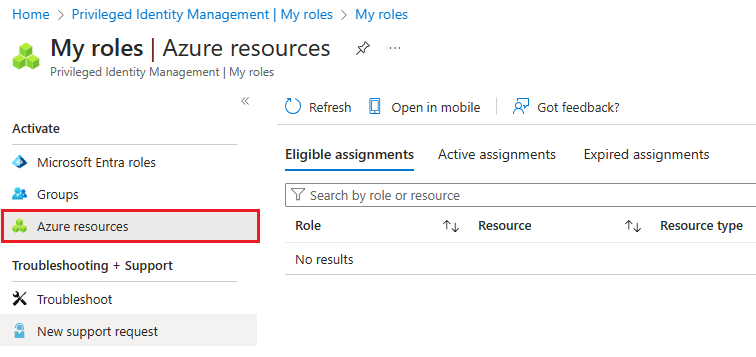
- Under Eligible assignments, there will be a list of subscriptions or resources that can be activated. Select Activate next to the subscription you wish to elevate permissions in.
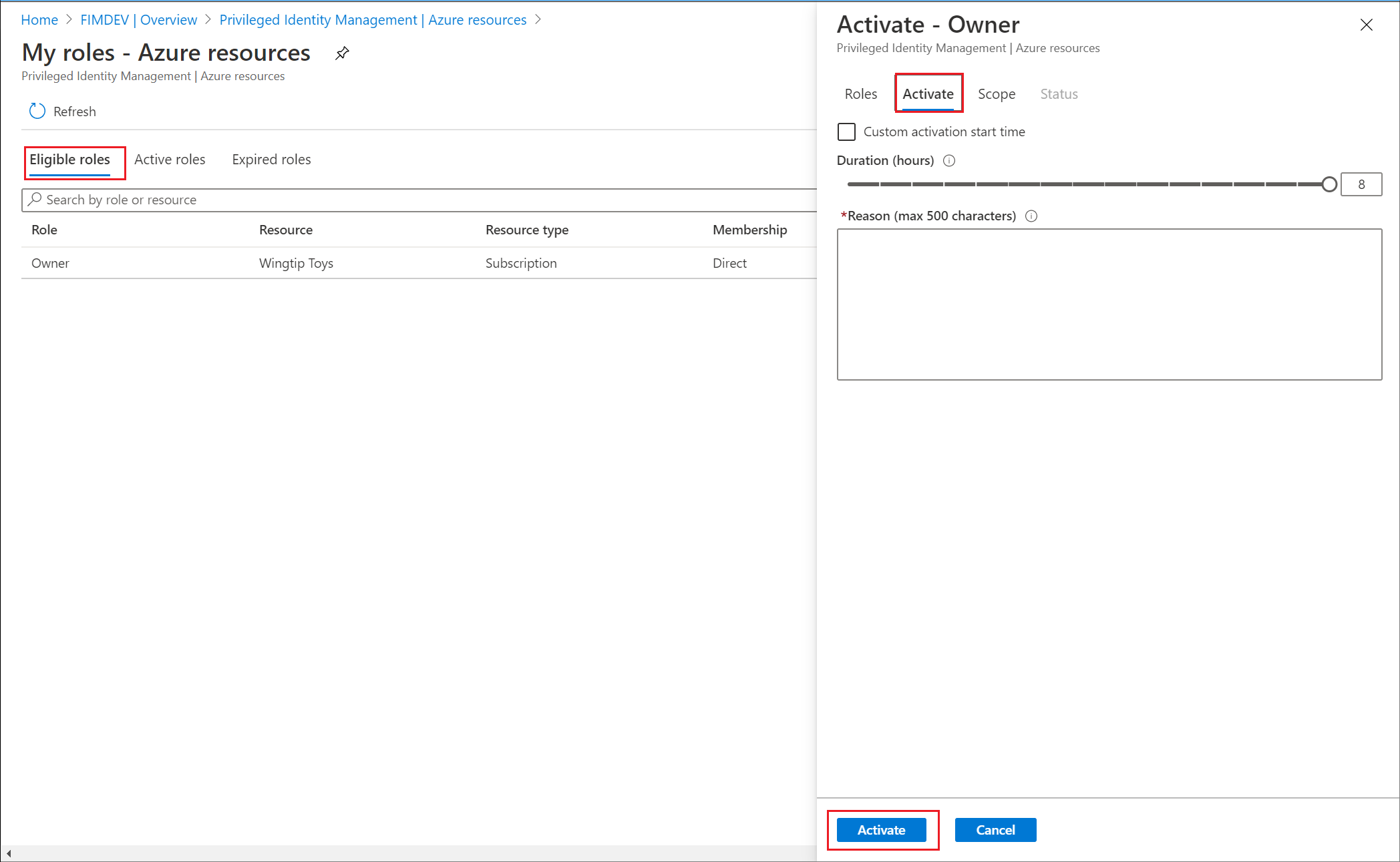
- In the pop-up, set your duration between 0.5 and 8 hours, and include your need for elevation within the Reason field.
- Once entered, click the Activate button. Once you have been elevated, the browser will refresh.
References